Viewing submissions
Note
Affected user: redactor, coordinator and administrator
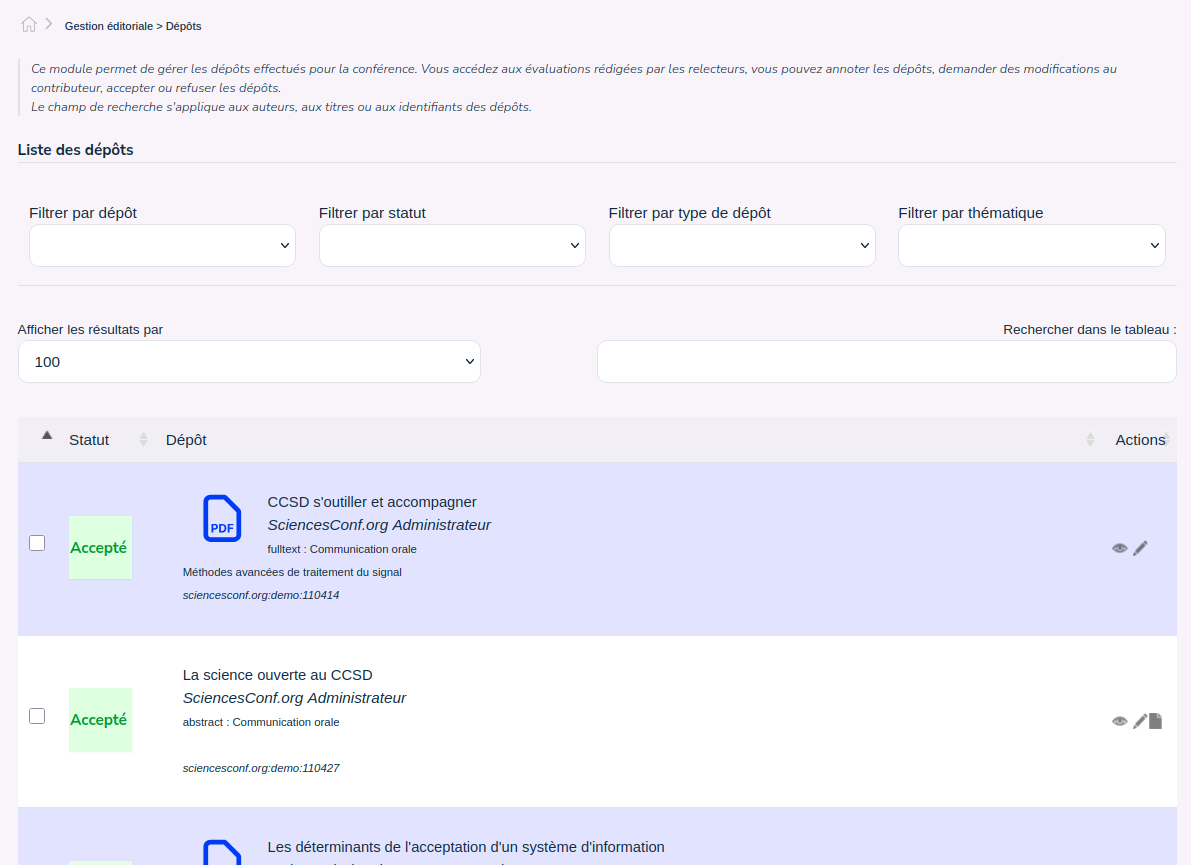
The Editorial management > Submissions screen displays the submission dashboard.
Filters
It is possible to apply several filters to the displayed list depending on the configuration of the submissions:
Submission filter : allows you to display only abstracts or only fulltexts,
Status filter: to choose the status of the deposits displayed Initial, Accepted, Awaiting update, Refused, Reviewed or No review
Submission type filter : allows you to choose from the list of parameterized deposit types
Topic filter : allows you to choose from the list of configured topics
You can also limit the number of results displayed and search among filtered submissions. The research focuses on the identifier of the deposit, the title and the names of the authors.
Submissions list
Submisions statuses are: Initial, Note, Accepted, Refused, and Awaiting modification. If the submission has a note, it means that it has been reviewed.

To view the submission, click on the eye on the right of the relevant line. You will have access to its file and to the PDF version of the document. To modify it, click on the pencil. Submit

Submission history
You access the history of the various actions made on the deposit (date, by whom, etc).
Reviewers evaluations
If the repository has been reviewed, you can see the details of the rating by the reviewer(s): notes, possible comments, opinions on the topics and types of repositories.
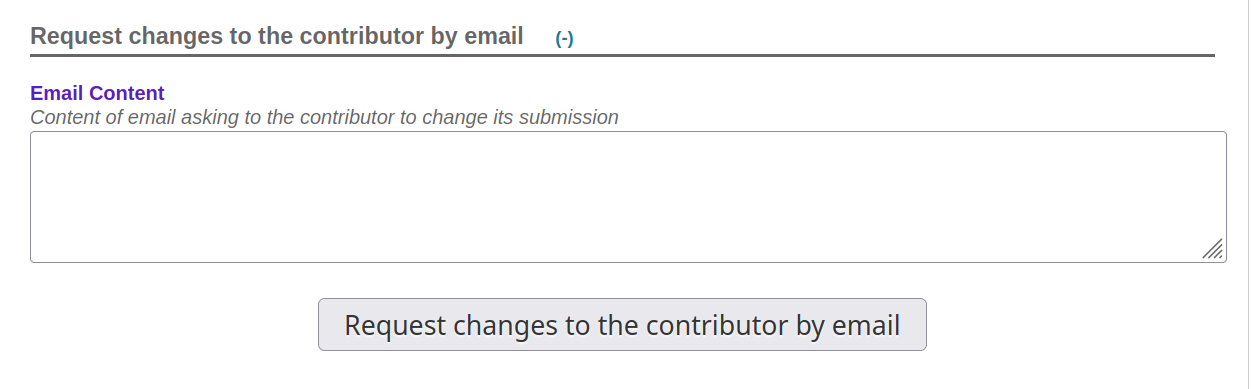
Request changes to the contributor by email
If you wish to request modifications from the applicant, you have the possibility to enter the content of the email directly into the insert provided for this purpose. Then click on the `Request changes to the depositor by email` button, sending is immediate.
Annotate
You can enter internal notes (between coordinators).
Actions
Finally, in this part, you confirm or modify the type of deposit, the topic and you can enter comments for the depositor. Attention, you must save this comment. The mailing will be done in the Mailing management > Mailing section. This option allows you to enter comments for each repository and send all comments at the end of the selection.
As administrator-coordinator, one of your roles is to accept, refuse or request changes from depositors.
Accept, Decline, and Save comment for depositor
After checking the notes and ratings of the reviewers and after confirming the type and topic of the repository, you can choose the action you want to perform.
Attention, if you want to send a comment to the depositor, you must save it at the same time as you change the status of the deposit or when sending the email.
To return to the repository dashboard, go to Editorial Management>Submissions.

Change of deposit and change of status “en masse”
To change the deposit, click on the pencil to the right of the deposit.

This way you can make changes or corrections to the information that describes the document.
In addition, the check boxes on the left allow you to perform actions on all selected deposits. After selecting one or more deposits, you will find at the bottom of the page a drop-down list allowing you to perform two types of actions: change of status or deletion of the deposit.
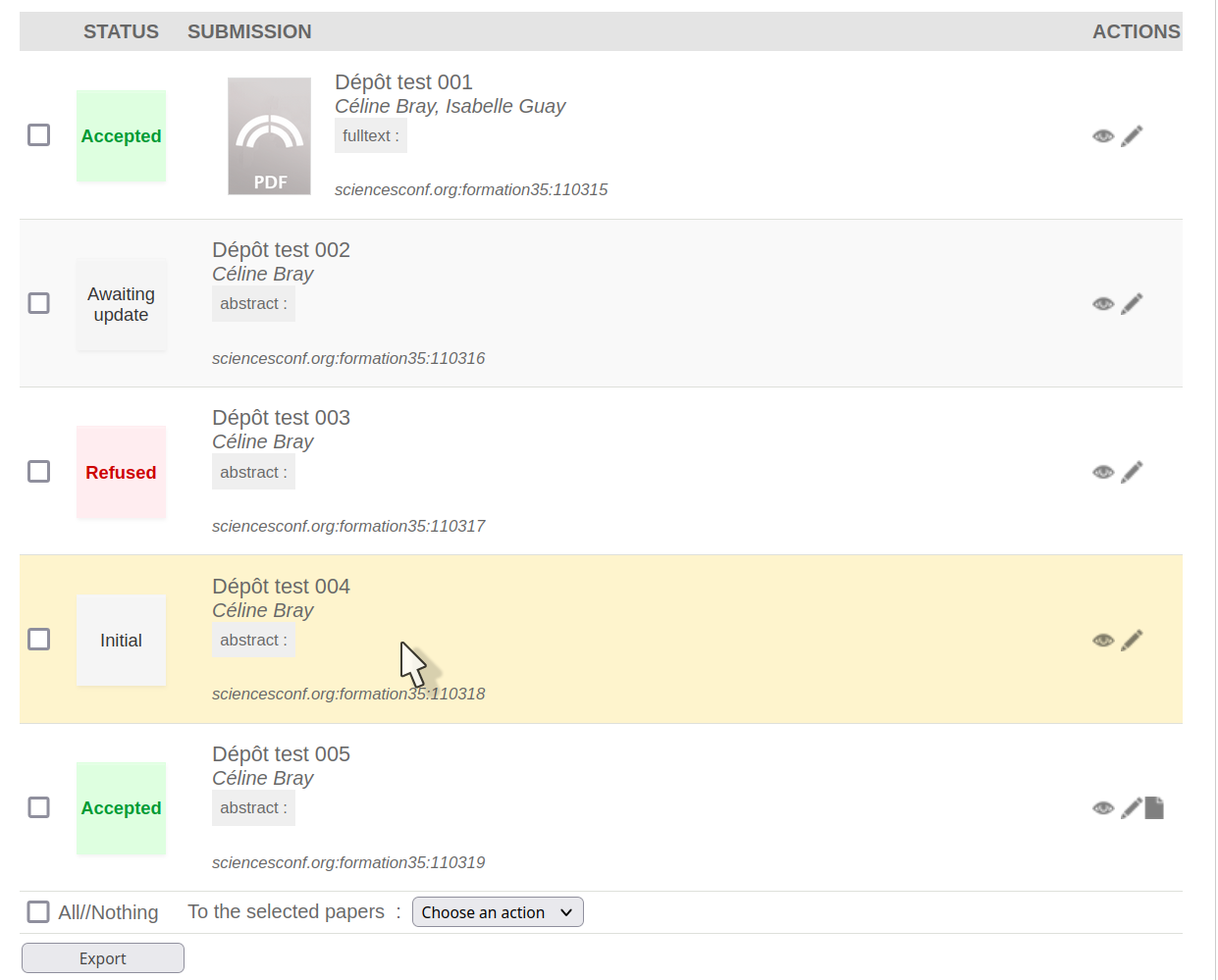
As long as the deposits are in the Initial or Awaiting update status, the deposit can be modified by the depositor.
If the deposit has a note or is refused, the depositor may no longer amend it.
If the deposit is accepted, the deposit can only be modified by the coordinator administrator. If a change is made, the status is restored to the original, and you will need to change it again.